How to translate your own novel with Webnovels AI
Webnovels AI started life as a novel translation tool. The desktop app is now a writing studio, and the translation job did not disappear. It moved into the same place as everything else: a project with chapters, Book memory, an Author Voice, and an agent that reads the whole book before it touches a line. This guide shows how to translate a manuscript you have the rights to, which models you can run it on, and how to keep names and terms steady across hundreds of chapters.
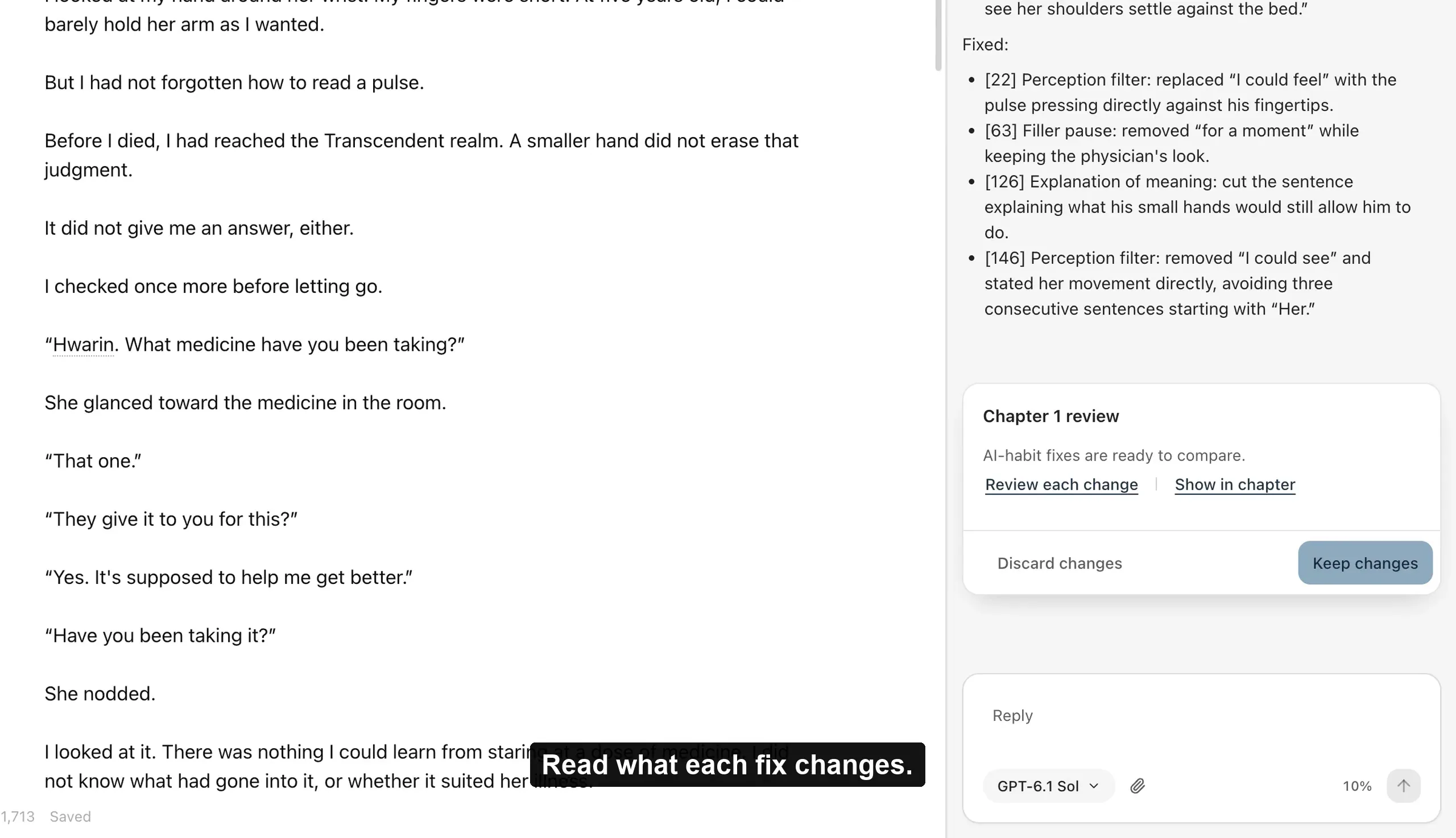
Webnovels AI began as a translation tool. The Webnovels AI still translates a book you own, chapter by chapter, with a glossary, your voice, and your own ChatGPT or SuperGrok account instead of an API key.
Who this is for
This workflow is for authors translating their own work, for bilingual writers who draft in one language and publish in another, and for translators who hold a licence or written permission from the author. The studio asks you to confirm that you have the right to use the files you drop in, and the same rule applies here.
It is not a way to read a book you do not own. For private reading copies of licensed novels, the separate Novel Translator service still exists, and the guides in this blog about MTL cover that use.
- Your own manuscript, in any source language
- A licensed or permitted translation job
- Long serials where consistency matters more than speed
Create the translation project
On the Dashboard, choose New book, then Existing book. Drop in the source manuscript: TXT, Markdown, EPUB, or a ZIP of them. Set Chapters to use, and confirm that you are the author or have the legal right to use the files. Set Written in to the language you are translating into. That is the language Bao writes the book in.
Give the book the title you will publish under, then choose Open the book. The setup chat asks one question at a time. Tell Bao that this book is a translation: the same events, the same people, and the same outcomes, in new prose in the target language. Then state the rules for every chapter: keep honorifics, keep measurement units, how to render a recurring pun. Bao records your answers on the story card.
To check the language later, open Book information from the book title in the title bar and read Written in.
Build the glossary before the first chapter
Most translation errors in long books are not grammar. They are a name that changes spelling in chapter forty, a title that is sometimes translated and sometimes kept, a place that gains an extra word. Book memory is the glossary. Open Characters, Places, and Terms, and record the spelling you want in the target language. Add the source-language name to the record so Bao can match it when it reads the source.
Bao reads the source into Book memory when you create the book, so many of these records already exist. Review them and fix the spellings. From then on, every chapter request reads those records first.
- One record per named person, with the target spelling
- Places as Places records, organisations as Groups, titles and set phrases as Terms
- Honorific rules on the story card
Translate one chapter at a time
In the book’s chat, ask for one chapter: translate Chapter 1 from the source into English, keep the names from Book memory, keep every event, and do not add or remove scenes. Bao reads the source chapter, checks the records, writes the draft, and shows the change on an approval card. Nothing changes in the book until you choose Approve.
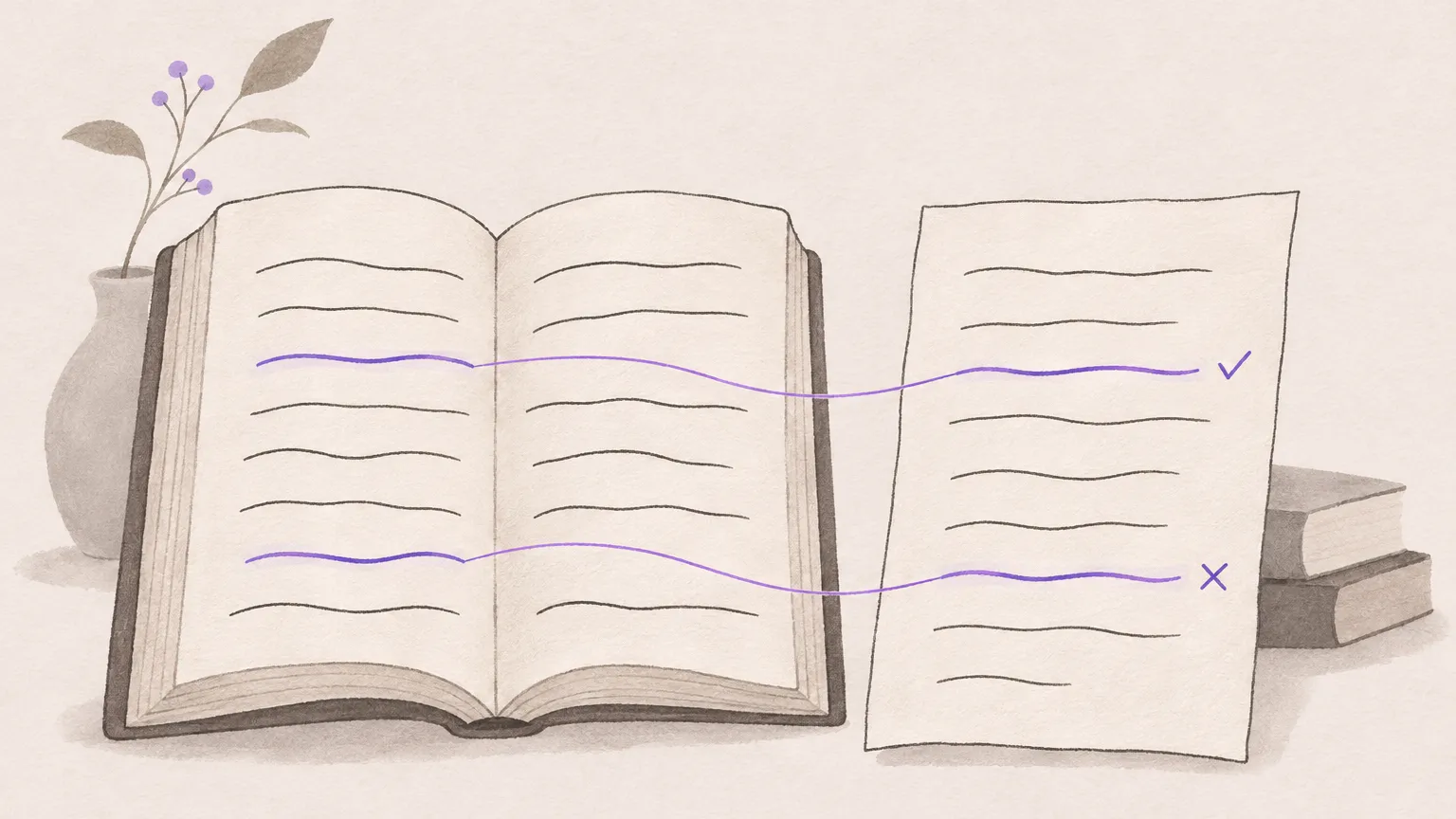
Read the draft against the source before you approve. When a line is wrong, choose Give feedback with the correction and approve the second version. The correction is kept in History, and the agent sees the approved chapters when it translates the next one, so your choices carry forward.
Every ten chapters or so, use /review (Review chapters), or choose Check the book in Book memory. Both compare the new chapters against Book memory and report names, places, and facts that drifted.
Keep the author voice, even across languages
If you translate your own work, open Author Voice, choose New voice, then Add writing… with a few chapters you have already written in the target language. Choose Learn this voice and turn on Write in this voice. Your translation then sounds like your English, not like a model default.
If you translate someone else, the voice samples can be the author’s existing translated chapters, with their permission. The same rule about rights applies to voice samples as to manuscripts.
Bring your own model: ChatGPT, SuperGrok, or a key
The studio does not sell model access. Open Settings, then Model Config, and pick the provider you already pay for. ChatGPT and Grok connect directly: choose Sign in with ChatGPT or Sign in with SuperGrok or X Premium, and the studio uses that subscription for its requests. No API key, no separate billing.
Other providers take an API key: choose Use an API key instead for OpenAI, xAI, DeepSeek, or OpenRouter, which gives access to many models through one key. For a model on your own machine, such as Ollama or LM Studio, choose Add custom provider. That suits private manuscripts and slow connections. You can switch providers between chapters; Book memory and approved chapters stay the same.
To estimate cost before you start, the free AI translation cost calculator on this site takes a word count and a model and returns the input tokens, output tokens, and price for the whole book.
- ChatGPT: Sign in with ChatGPT, no key
- Grok: Sign in with SuperGrok or X Premium, no key
- OpenAI, xAI, DeepSeek, OpenRouter: paste a key
- Ollama or LM Studio: Add custom provider, no account
Export and publish
When the chapters are approved, choose Export above the chapter list. Manuscript saves EPUB for readers and stores, or Markdown or Text for an editor, with one file per chapter if you want it. Book Memory saves your glossary, and Full book backup saves the whole book as a ZIP file. Everything stays in the data folder on your computer.
For a very long book, you can let an external agent do the repetitive part. In Settings, Agent Access runs a local agent server: choose Add to Claude Code or Add to Codex, and that agent can open the project, read a source chapter, write the translation through the same tools, and leave each chapter for your approval.